I wanted to schedule turning off/shutting down Windows processes/applications because as time passes during my day at my computer, I open more and more applications and they get crowded in my workspace. This is why, I decided to create a PowerShell script that I would execute as soon as I’ve opened my computer. A form of a scheduler that stops applications while I’m working at my computer.
And the script is a pretty easy one. Basically, the script consists of 2 commands: one command that tells the script to “wait” X seconds and a 2nd command that will actually stop/shutdown the Windows process/application that you need.
Being able to view/display a list of all active/running processes/applications when using Windows via PowerShell has really helped me with my automation tasks, especially when working remotely.
There comes a time when you’ll need to know how to stop a Windows application (your browser, your chat application, etc.) via the Windows PowerShell. It’s useful when you’re planning on creating scripts to automate tasks. Here we go.
I sometimes find myself needing my newly created virtual machines to have their IP reachable across my local network. Because I can’t ping my VM, I can’t seem to find its IP inside my local network. And I need it so I can do my work with it remotely, connecting via RDP, SSH, etc..
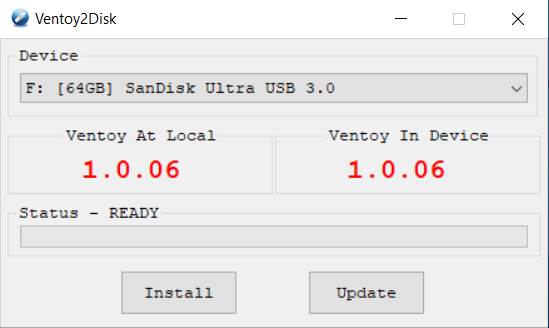
Ventoy had its first release at the beginning of April 2020. Its support across the Windows and Linux environment is already astonishingly large. I’m currently testing version 1.0.0.06 and below, you’ll see how to use it on Windows and Linux.